Showing posts with label Browser Tricks. Show all posts
03:53 0

How to Speed Up Firefox?

Introduction: How to Increase the speed of Firefox?
How to Speed Up Firefox? If you have a broadband Internet connection and use Firefox you can decrease the time each web page you visit loads by enabling pipelining. Pipelining will make Firefox load more than one request at a time for each page it loads. In other words if the page you are visiting has dozens of images it will load more than one image at a time, making the web page appear faster. Follow the below steps to enable pipelining in Firefox.

  • In the address bar type about:config and press enter.
  • In pipelining in the search box, as shown below.
  • Double-click network.http.pipelining to set the Value to true.
  • Double-click network.http.proxy.pipelining to set the Value to true.
  • Make sure network.http.pipelining.maxrequests is set to a value of more than 30.
  • Right-click in an empty portion of the about:config window and click New and then Integer. Enter nglayout.initialpaint.delay as the name of the integer and for the value make it 0.


Visit Our Official Facebook Page For More: Daoud Softwares And Tips and Tricks
09:17 0

How To Use Web Browsers As Text Editor?

How To Use Web Browsers As Text Editor?
In this tutorial i will show you a simple and interesting trick to use your web browser such as Google Chrome or Mozilla Firefox as a simple text editor like Notepad. This trick works on all web browsers. So lets get started.

How To Do ?
1. Copy below code in browser Address Bar.

data:text/html, <html contenteditable>

2. Now Press Enter.
3. Now you can type anything as would do on any other text editor like Notepad.
4. To save your text file Press Ctrl + S and save it as anything.txt (.txt Is Must).

Visit Our Official Facebook Page For More: Daoud Softwares And Tips and Tricks
09:54 0

How to view saved password in google chrome?

How to view saved password in google chrome?
this a assume tricks to view any saved password in Google chrome. We are all known about Google chrome which is the most popular web browser, so you can easily find your saved password if you are forgetting.
Step-1:
At first open Google chrome and go to “settings” (top right corner)
Step-2:
Now scroll down and click “Show advance settings”.


Step-3:
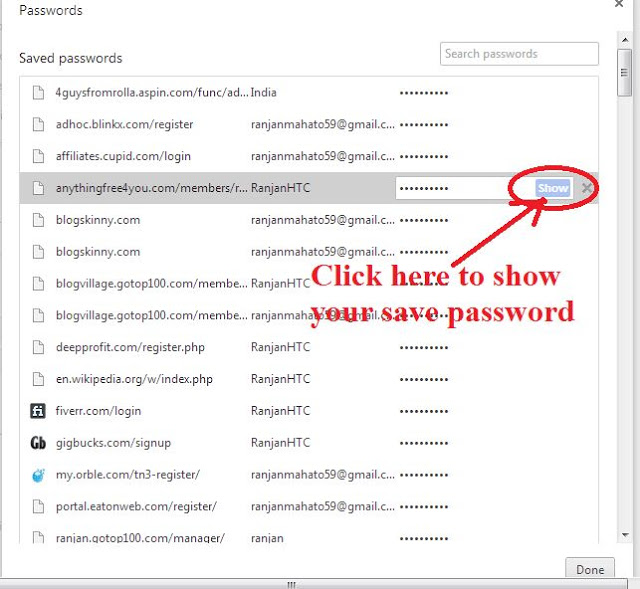
Then go to “password and forms” and click “Manage saved password” here you must see list of all websites whose passwords are saved in the browser will be listed.


Step-4:
Now select which website password you will see.

That’s it. Hope you enjoy so much in this tricks.

Visit Our Official Facebook Page For More: Daoud Softwares And Tips and Tricks